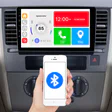
Auto Link for Android/Car Play
QS Rising StarAuto & Vehicles
2.940.00 Reviews
- Version
- 1.2.28
- Installs
- 100.00K
- Age Rating
- Everyone
Screenshots
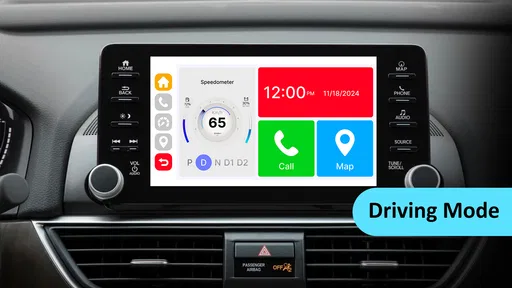
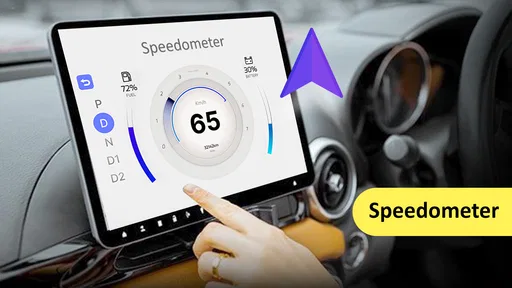
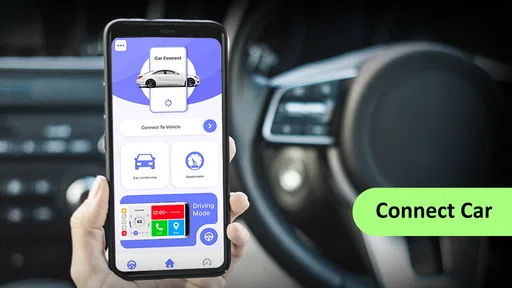
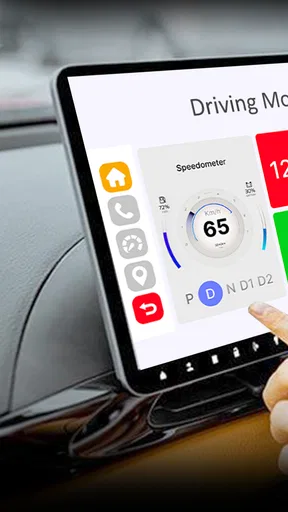
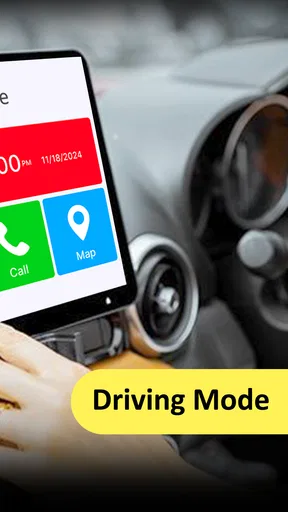
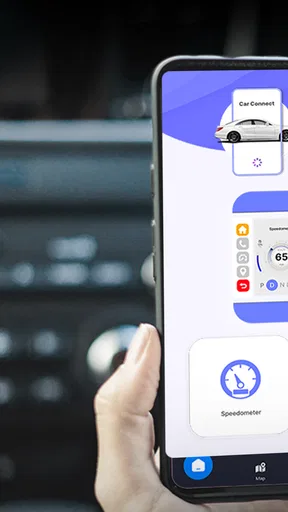
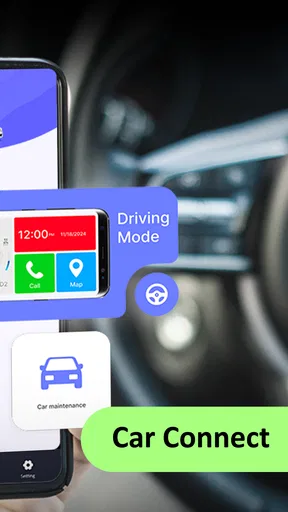
Our Review of Auto Link for Android/Car Play
 Analysis by Appyee
I would start with one practical question before installing anything: what job do you expect Auto Link to do? Its core purpose is to help connect a phone to a car’s infotainment system through Bluetooth and USB. That makes it most relevant when you want your phone and the car’s existing display to work together, rather than when you’re looking for a standalone navigation, music, or messaging app. In my view, that distinction is important because a connection app can only be useful when the phone, vehicle, cable, and car system are compatible with the way you plan to connect.
Why a connection can feel less simple than it sounds
People often get stuck because “connect my phone to my car” can mean several different things: pairing over Bluetooth, plugging in by USB, or expecting the dashboard to show a particular phone interface. Those aren’t interchangeable experiences. Bluetooth may be enough for basic audio or calls, while the car’s USB connection may be needed for other functions. Before blaming the app, I’d check what connection method your vehicle supports and what it is designed to display.
A useful first test is to make one change at a time. If you have been trying both Bluetooth and USB, disconnect one route and test the other rather than changing several settings at once. That gives you a clearer clue about where the problem is. If the car recognizes the phone over Bluetooth but not through USB, the issue may be tied to the cable, port, or the vehicle’s USB behavior rather than to the whole app.
Small checks that make setup easier
I’d begin while parked, with the car’s infotainment screen available and the phone unlocked. Confirm that Bluetooth is on if you’re pairing wirelessly, and use a USB cable that can transfer data if you’re testing a wired connection; some cables are intended only for charging. If the dashboard prompts you to approve a connection, read the prompt and respond there instead of repeatedly unplugging the phone.
It also helps to avoid starting with a crowded setup. If several phones have previously been paired with the vehicle, or another phone is nearby and already connects automatically, the car may select a different device than the one you’re testing. Temporarily keeping the test to one phone can make the result easier to interpret. Once the connection works, you can restore your usual arrangement.
Auto Link is a free Android app from QS Rising Star, with optional in-app purchases priced from $9.99 to $99.99 per item. It is rated for Everyone and requires Android 8.0 or later. The app has a 2.9 average from around 388 ratings, so I would approach it as a tool worth testing carefully rather than assuming it will behave perfectly with every car. Its 100K+ installs show that many people have tried it, but your own vehicle and phone combination is what matters most.
How I’d recover from a failed connection
If a connection drops, I wouldn’t immediately repeat the entire setup. First, I’d wait until the car is safely parked, then check whether the phone still shows the vehicle as connected and whether the infotainment system is still on the relevant input. If one side appears disconnected, I’d end that connection cleanly and start again using the same method that worked previously. This is less confusing than switching between Bluetooth and USB mid-troubleshooting.
If reconnecting does not help, a sensible next step is to restart the phone and the car’s infotainment system when it is safe to do so, then try again with a single connection method. I’d also inspect the cable and try another suitable USB cable if the wired route is the one failing. These are basic checks, not a promise that every fault is app-related; they simply help separate a temporary connection snag from a compatibility issue.
When the app may not be the problem
A phone can pair successfully without the dashboard offering the exact screen or functions you expect. The car’s built-in system determines which phone integrations it supports, while the phone’s software and connection settings also affect what appears. If the vehicle does not support the interface you have in mind, installing a connection app cannot necessarily add that support. I’d check the vehicle’s infotainment instructions before spending time repeating setup.
There is also a difference between getting a connection and getting a particular app to behave well on the car display. If audio works but an app does not appear, that does not automatically mean the Bluetooth link has failed. Think of connection, display support, and individual app behavior as separate steps. Keeping those stages distinct makes troubleshooting more practical and helps you decide whether to adjust the phone, check the car, or use a different way to access that service.
Who should give it a try
Auto Link makes the most sense for someone who already has a compatible car system and wants to explore a phone-to-dashboard connection without paying upfront. It may suit a driver who uses the same vehicle regularly and is willing to test Bluetooth and USB separately, then keep whichever route is dependable. I’d be more cautious if you need a guaranteed connection for a time-sensitive trip or if your main goal is simply to play audio; the car’s own Bluetooth pairing may be a simpler alternative for that narrower need.
For example, before a familiar commute, I’d connect while parked, confirm the dashboard recognizes the intended phone, and make sure the car is using the right input. If it works, I’d leave the setup alone rather than re-pairing every morning. If it fails, I’d use the car’s regular Bluetooth option or another established way to access audio, then troubleshoot later at home. That keeps a connection problem from becoming a distraction when I’m already trying to leave.
Seamless Connectivity
One of the first things I noticed about the Auto Link for Android/Car Play app is its user-friendly interface. Setting it up was a breeze. I mean, if you can handle a smartphone, you can definitely handle this. Just plug your phone into your car's USB port, and voilà! It automatically syncs with your car's display. I was impressed by how quickly the app made everything work in harmony.
What makes this app a standout is its ability to integrate with both Android Auto and Apple CarPlay. So, whether you’re team Android or team Apple, you’re covered. I tested it on both platforms, and the performance was equally smooth. It’s almost like the app was whispering "I got you" every time I switched between devices.
Features That Make a Difference
The real magic lies in the features that Auto Link for Android/Car Play offers. First off, let's talk navigation. I’ve tried a bunch of navigation apps, but this one takes the cake for its accuracy and real-time updates. Whether you're dodging traffic or searching for the nearest coffee shop, the app keeps you on track without any hiccups.
And let's not forget the music. Who doesn't love jamming to their favorite tunes while driving? The app seamlessly integrates with Spotify, Apple Music, and other popular music services. The sound quality is crisp, and the app lets you control everything with just a few taps on your car's display or through voice commands. It's like having a DJ in your dashboard!
Safety First
Of course, no app is worth its salt if it doesn’t prioritize safety, and this one does just that. The app provides hands-free calling and messaging, which means you can keep your eyes on the road and your hands on the wheel. I found the voice recognition to be spot on, and it never once misinterpreted my commands. It's a relief to know I can send a quick message or make a call without fumbling with my phone.
The app also features a "Do Not Disturb" mode, which is a lifesaver during those longer road trips. This feature automatically silences notifications, ensuring you're not distracted by every little ping and ding. It's just one of those small details that shows the app's commitment to providing a safe driving experience.
Room for Improvement
Now, let's talk about where this app could use a little polish. While the app performs admirably in most areas, I did experience a couple of moments where the connectivity dropped. It wasn’t anything major, but it did require me to unplug and replug my phone. A minor inconvenience, sure, but worth mentioning.
Another thing is the app's occasional lag when loading third-party apps. It doesn’t happen often, but when you're in a rush, every second counts. A few updates to smooth out these hiccups would make this app near perfect.
The Final Verdict
All in all, Auto Link for Android/Car Play is a solid choice for anyone looking to enhance their in-car experience. It’s packed with features that make connectivity a breeze, and it prioritizes safety without sacrificing functionality. Sure, there are a few kinks to iron out, but nothing that detracts significantly from its overall performance.
If you're someone who values a seamless driving experience, this app is definitely worth checking out. It's like having your own personal co-pilot, minus the backseat driving. So, go ahead and give it a try—I promise you won't regret it!
My practical recommendation
My strongest advice is to test the exact combination you plan to use: your own phone, your own vehicle, and the connection method you expect to rely on. A successful first pairing is encouraging, but I’d still make a short, parked test before depending on it for a longer drive. Check that the car recognizes the phone after you reconnect, not only on the first attempt. That small check can reveal whether the setup is repeatable without turning a routine departure into a troubleshooting session.
If you are comparing it with alternatives, start with the simplest one that meets your need. A car’s native Bluetooth connection can be enough for calls or audio, while a supported built-in phone interface may be the better choice when you want navigation or dashboard controls. Auto Link is most appealing when you specifically want to try bridging the phone and infotainment system; it is not automatically an upgrade over a connection that already works reliably.
I’d also be deliberate about the paid items. The app is free to install, but in-app purchases range from $9.99 to $99.99 per item. I would first confirm that the basic connection works in your car and decide what you actually need before considering any purchase. That avoids paying for something before you know whether the underlying setup fits your vehicle and everyday routine.
For me, the main trade-off is convenience versus predictability. When the connection is working, having phone access through the car can make a familiar drive easier. When it is not, repeated pairing attempts can become more distracting than simply using the vehicle’s existing audio option. I’d treat Auto Link as a convenience to validate in advance, not as something to troubleshoot while driving or as a substitute for checking the car’s own compatibility.
My overall recommendation is measured: try it if your goal is phone-to-car connectivity, you are comfortable doing a careful setup test, and a backup option is available. Skip it if you need a no-fuss solution immediately, your car does not support the integration you want, or basic Bluetooth already does everything you need. The low-pressure way to decide is to test it while parked, keep expectations tied to what your vehicle supports, and continue using it only if it proves dependable in your own routine.
Verdict
Strengths of Auto Link for Android/Car Play
- Seamless integration with car systems
- User-friendly interface and navigation
- Supports multiple media formats
- Real-time traffic updates
- Voice command functionality
Limitations of Auto Link for Android/Car Play
- Limited compatibility with older devices
- Occasional connection drops
- Consumes significant battery power
- Requires stable internet connection
- Some features are premium-only
Similar Picks in This Category
View All
Android Auto
Google LLC4.1

maxim — order a taxi & food
PT. SITO4.7

Штрафы ГИБДД: проверка с фото
Pays LLC – Штрафы ГИБДД4.7

Номерограм – проверка авто
Авто Ассист4.8

Дром Авто
Дром4.9

Frequently Asked Questions
What is Auto Link for Android/Car Play and how does it work?
Auto Link for Android/Car Play is an application that enables seamless integration between your smartphone and your car's infotainment system. It allows you to access apps, navigation, and other features directly on your car's display. The app works by mirroring your phone's interface onto the car's screen, providing easy access to calls, music, and messages.
Is Auto Link compatible with all car models?
Auto Link is designed to be compatible with a wide range of car models that support Android Auto or Apple CarPlay. However, compatibility can vary depending on the specific make and model of your vehicle. It's advisable to check your car's manual or consult with the manufacturer to ensure compatibility before downloading the app.
Does Auto Link require an internet connection to function?
Yes, an internet connection is typically required for certain features of Auto Link to function, such as real-time navigation, streaming music, and accessing live traffic updates. However, some basic functionalities like playing stored music or making calls might work offline, depending on your phone's capabilities.
What are the system requirements for installing Auto Link?
Auto Link requires a smartphone running on Android 5.0 or higher, or iOS 10 or later. Additionally, your car must support either Android Auto or Apple CarPlay. Ensure that both your phone and car's infotainment system are updated to the latest software versions for optimal performance.
Are there any privacy concerns with using Auto Link?
Auto Link prioritizes user privacy and security. The app uses encrypted connections to prevent unauthorized access to your data. However, like any app that accesses personal information, there is a risk of data exposure. Users are encouraged to review the app's privacy policy and adjust settings to suit their privacy preferences.
